7 Safe Browsers for Privacy in 2026
A practical ranking of browser privacy defaults, fingerprinting defenses, everyday tradeoffs, and the settings worth changing.
 By Michael Miller · Updated July 23, 2026
There is no single safest browser for every threat. For privacy-conscious everyday browsing, Firefox with Strict Enhanced Tracking Protection and HTTPS-Only Mode is our best starting point. Brave needs less setup, Tor Browser is built for anonymity-sensitive sessions, and Mullvad Browser focuses on fingerprint resistance without routing traffic through Tor.
This comparison covers vendor-documented privacy controls, phishing and download warnings, fingerprinting defenses, private-mode limits, and everyday usability as checked on July 22, 2026. It is not a complete ranking of browser engines against exploits, sandbox escapes, memory-safety failures, or enterprise attacks, and it does not claim original vulnerability or performance testing.
Choose a safe browser by the job it needs to do
Privacy, everyday safety, and anonymity overlap, but they are not interchangeable. Privacy controls limit tracking and stored data. Everyday safety includes current updates, HTTPS handling, and warnings about known malicious sites or downloads. Anonymity additionally requires separating identity and hiding the network route; no ordinary private window does that.
| Browser | Best starting point for | Documented protection | Main limitation |
|---|---|---|---|
| Firefox | Private everyday browsing with control | Total Cookie Protection, configurable tracker blocking, and HTTPS-Only Mode | Strict settings can break embeds and sign-ins |
| Brave | Strong privacy with little setup | Shields blocks trackers, cross-site cookies, and common fingerprinting techniques by default | Some sites need a narrow Shields exception |
| Tor Browser | Anonymity-sensitive sessions | Tor routing plus browser-level fingerprinting defenses | Slower, more site friction, and no guarantee of perfect anonymity |
| Mullvad Browser | Fingerprint resistance without Tor routing | Tor-developed anti-fingerprinting defaults with low customization | It does not hide your IP address by itself |
| Safari | Integrated privacy on Apple devices | Cross-site tracking and fingerprinting defenses built into the platform | Best fit is limited to the Apple ecosystem |
| Edge | Windows and managed environments | Basic, Balanced, and Strict tracking prevention plus Chromium compatibility | Balanced is the default; Strict can break sites |
| Chrome | Mainstream compatibility and Google-managed environments | Safe Browsing warnings plus user-controlled privacy settings | Incognito is local privacy, not anonymity |
A current mainstream browser is generally a safer starting point than an abandoned privacy fork. Privacy settings cannot compensate for a browser engine that no longer receives fixes. This page does not rank the relative strength of each browser’s sandbox or exploit mitigations, so use the table to choose a privacy workflow rather than to infer a universal security winner.
1. Firefox: our everyday privacy starting point
Firefox gives ordinary users a strong balance of privacy controls and recoverable site compatibility. Mozilla documents Total Cookie Protection as a separate cookie jar for each site. Strict Enhanced Tracking Protection blocks all cross-site cookies, while HTTPS-Only Mode attempts an encrypted connection and warns before loading an HTTP-only page.
Open Settings > Privacy & Security, select Strict, and enable HTTPS-Only Mode. Keep the extension list short because every extra add-on adds code with browsing access and can make a setup more distinctive.
Strict mode can break an embedded video, payment widget, or federated login. Use the shield control to make a site-specific exception and restore protection after testing. One narrow exception is better than weakening every site. If the missing layer is network-route privacy rather than browser hardening, the VPN for Firefox guide owns that separate decision.
2. Brave: strong privacy defaults with minimal setup
Brave Shields is enabled by default. Brave says it blocks trackers and cross-site cookies and randomizes or removes browser interfaces commonly used for fingerprinting. That makes it easier than Firefox for someone who wants a privacy-focused baseline without changing several settings.
Keep Shields on its normal default first. Move to more aggressive blocking only when you understand which page feature stops working, and avoid extensions that merely duplicate the built-in controls.
Brave’s private window with Tor is the important caveat. Brave describes it as a private window that routes through Tor but lacks many Tor Browser protections. Use the full Tor Browser when anonymity is the actual job.
3. Tor Browser: for anonymity-sensitive sessions

Tor Browser combines Tor network routing with browser defenses intended to reduce fingerprint uniqueness. The documented controls include letterboxing, normalized browser signals, restricted fonts and first-party isolation.
Leave the browser close to its defaults. Do not add extensions, change many interface details, or sign in to an identity that you are trying to keep separate. Tor’s Safer and Safest security levels disable more web features, including some JavaScript, fonts, and media behavior, so they trade site functionality for a smaller attack surface.
Tor Browser still cannot promise perfect anonymity. A login, payment, download, personal detail, or compromised device can identify you. The Tor Project’s safe-use guidance explains why behavior still matters. Our dark web guide covers operator-verified onion services without treating Tor as a magic shield.
4. Mullvad Browser: fingerprint resistance without Tor routing
Mullvad Browser was developed with the Tor Project to bring Tor Browser-style anti-fingerprinting choices to a browser that does not automatically use the Tor network. It suits a separate, minimally customized research session when fingerprint resistance matters but Tor routing does not.
The limitation must stay visible. Mullvad’s official FAQ says the browser does not mask your IP address by itself and distinguishes it from Tor Browser by the network used. A VPN can change the visible IP and local network path, but the browser and VPN remain separate tools.
Keep its defaults and built-in extensions. The protection depends partly on users presenting similar configurations, so personalizing fonts, extensions, window behavior, and language settings works against that model.
5. Safari: an integrated privacy choice for Apple users
Apple’s Safari privacy overview documents cross-site tracking protections and defenses intended to make fingerprinting more difficult. For an iPhone, iPad, or Mac user who wants a browser integrated with the operating system, Safari is a credible everyday option.
Apple also describes iCloud Private Relay as a Safari-focused network privacy feature for eligible iCloud+ users. It is not a full-device VPN and should not be treated as one. Other apps and browsers need their own network privacy plan.
6. Edge: useful controls for Windows and managed work
Microsoft documents Basic, Balanced, and Strict tracking prevention. Balanced is the recommended default, while Strict blocks more cross-site trackers and can cause videos, sign-ins, or other page features to stop working.
InPrivate browsing limits local data retained after all InPrivate windows close. Microsoft is explicit that it does not hide activity from a school, workplace, internet provider, or the sites you visit. Treat it as shared-device cleanup, not an anonymity feature.
7. Chrome: strong warning systems, weaker privacy defaults
Chrome Safe Browsing checks sites, extensions, and downloads against unsafe-site information. Enhanced protection sends more activity data to Google for broader real-time checks, so choosing it involves a privacy trade-off rather than an automatic upgrade for every reader.
Incognito mode creates a temporary local session and removes its site data and browsing record after every Incognito window closes. Google states that websites and organizations managing the network can still observe activity. Use Chrome when compatibility, work policy, or a specific application requires it, but review its cookie, sync, ad, and search-suggestion settings. The VPN for Chrome guide covers network-route privacy without pretending a browser extension replaces browser controls.
Make any browser safer in 10 minutes
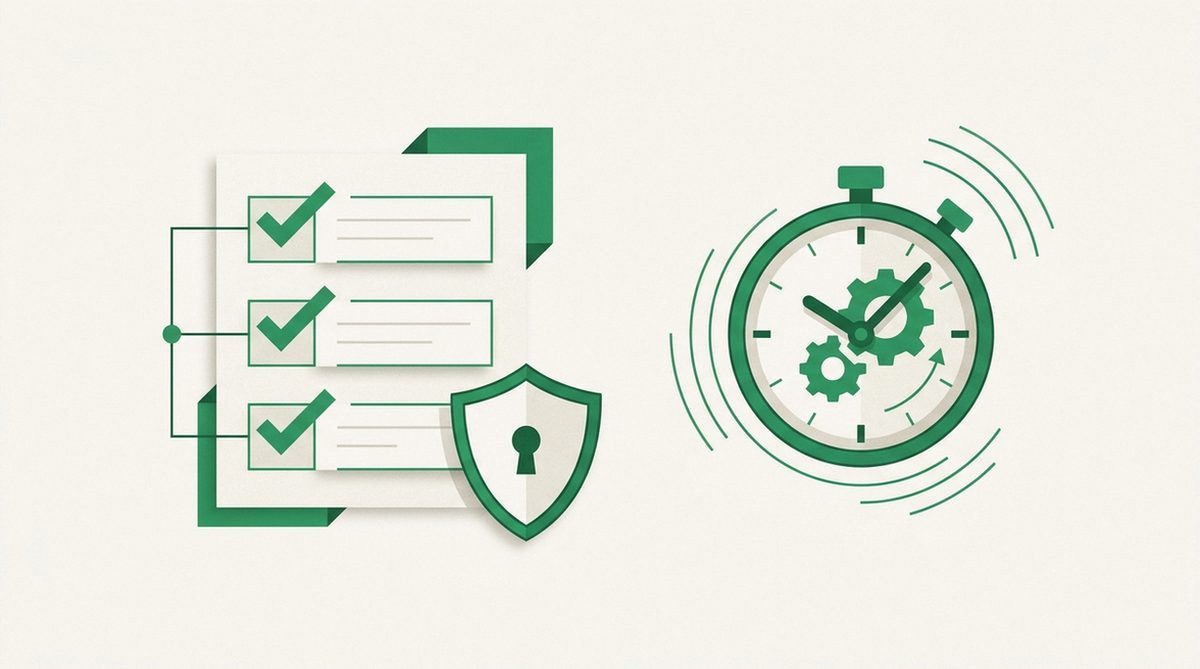
- Update the browser and operating system. Restart when an update requires it. A privacy setting cannot repair an unpatched engine.
- Raise tracking protection carefully. Test Firefox Strict, keep Brave Shields enabled, or try Edge Strict. Repair only the site that breaks.
- Remove unnecessary extensions. Check permissions and delete tools you no longer use. Never add extensions to Tor Browser.
- Separate browsing contexts. Keep work, personal accounts, shopping, and sensitive research in different profiles or browsers. Our online privacy guide covers the wider account and device routine.
- Use private mode for local privacy only. It is useful on a shared device, but it does not hide your public IP or signed-in identity.
- Check the destination before entering data. Browser warnings lower risk but cannot make a lookalike login page trustworthy.
A privacy browser and a VPN solve different problems
A privacy browser limits cookies, tracking scripts, exposed browser characteristics, and local traces. A full-device VPN encrypts traffic between your device and the VPN server and changes the public IP address presented to websites. It also shifts trust from the local network and ISP toward the VPN provider.
A VPN does not remove a browser fingerprint, hide a signed-in account, or make a malicious download safe. A browser does not normally protect traffic from other apps or hide the network route. Compare the best VPN services when network privacy is the main problem, or use the anonymous VPN guide when audit evidence and the limits of anonymity are the decision.
Our pick by privacy need
Use Firefox with Strict Enhanced Tracking Protection, HTTPS-Only Mode, and a lean extension list for private everyday browsing. Pick Brave when you want stronger defaults with less setup. Use Tor Browser for a separate anonymity-sensitive session, and Mullvad Browser when fingerprint resistance matters but Tor routing does not.
FAQ
Which safe browser should I choose for privacy?
Choose Firefox for configurable everyday privacy, Brave for a stronger out-of-the-box baseline, Tor Browser for anonymity-sensitive sessions, or Mullvad Browser for fingerprint resistance without built-in Tor routing. No one choice is safest against every browser or network threat.
Is Brave more private than Firefox?
Brave blocks more tracking techniques out of the box. Firefox gives you more control and becomes a strong daily option after you select Strict tracking protection and HTTPS-Only Mode. Both need current security updates, and neither makes a dangerous site safe.
Does private or Incognito mode hide my IP address?
No. Private modes mainly limit what the browser retains on your device after the session. Websites, employers, schools, and internet providers may still observe or infer activity. Tor Browser hides the source IP for browser traffic through Tor; a trustworthy VPN can change the visible IP for traffic routed through its tunnel.
Can a VPN stop browser fingerprinting?
No. A VPN changes the network route and visible IP address, but websites can still read browser and device characteristics. Use browser-level fingerprinting defenses, avoid unnecessary customization, and keep identifying accounts separate.
Is Tor Browser suitable for everyday accounts?
Tor Browser can connect securely to HTTPS sites, but it is not the most convenient choice for ordinary account sessions. Tor exits can trigger fraud checks, and logging in tells that service who you are even when it cannot see your home IP. Use Tor Browser for a deliberately separate task rather than as a faster version of private mode.
Michael Miller