Windows 10 Privacy Settings After End of Support
Windows 10 have privacy leaks. Read this guide to learn how to secure your online privacy with the best Windows 10 privacy settings!
 By Michael Miller · Updated July 22, 2026

Change the privacy settings below, but do not mistake them for a security fix. Microsoft ended standard Windows 10 support on October 14, 2025. An ordinary, unenrolled Windows 10 PC no longer receives free security updates, feature updates, or technical support.
Eligible personal PCs running Windows 10 version 22H2 can still enroll in Microsoft’s Consumer Extended Security Updates program. ESU supplies critical and important security updates through October 12, 2027, but it does not restore feature development or full support. Enroll or move to a supported operating system before fine-tuning privacy switches.
Windows 10 privacy settings at a glance
Use this as a baseline, not a universal rule. Keep a permission when a feature you actually use depends on it.
| Area | Windows 10 path | Practical baseline | Main tradeoff |
|---|---|---|---|
| General | Settings > Privacy > General | Turn off advertising ID, app-launch tracking, and suggested content | Less personalization |
| Diagnostics | Settings > Privacy > Diagnostics & feedback | Send Required data only; turn off tailored experiences and inking data | Less data for troubleshooting and suggestions |
| Activity history | Settings > Privacy > Activity history | Stop storing it and clear existing history | Timeline history stops working |
| Location | Settings > Privacy > Location | Disable it or allow only apps that need it | Maps, automatic time zone, and Find my device may be affected |
| Camera and microphone | Settings > Privacy > Camera or Microphone | Allow only the apps you use | Calls, recording, or dictation may stop working |
| Background apps | Settings > Privacy > Background apps | Block nonessential Store apps | Notifications and updates may arrive late |
| Speech and typing | Settings > Privacy > Speech or Inking & typing personalization | Turn off cloud features you do not use | Online dictation and personalized suggestions are reduced |
1. Secure Windows 10 before changing privacy options
Open Start > Settings > Update & Security > Windows Update, select Check for updates, and install every security update offered. If the device meets the Consumer ESU requirements, Windows Update displays an Enroll now link. Complete enrollment before assuming the PC still receives post-support patches.
ESU is a temporary bridge. Run Microsoft’s PC Health Check and select Check now to see whether the computer meets the Windows 11 requirements. If it does, plan the upgrade. If it does not, use the ESU period to replace the device or choose another supported operating system.
2. Turn off ad and launch personalization
Go to Start > Settings > Privacy > General. Turn off these switches unless you value their convenience:
- Let apps use advertising ID to make ads more interesting to you based on your app activity. This limits use of the Windows advertising identifier. It does not remove ads or stop browser cookies and other tracking methods.
- Let Windows track app launches to improve Start and search results. Turn it off if you do not want launch history used to personalize those areas.
- Show me suggested content in the Settings app. Turn it off to remove Microsoft’s recommendations from Settings.
- Let websites provide locally relevant content by accessing my language list. Turn it off if you prefer to set language on each site.
Leave Microsoft Defender SmartScreen enabled unless you have a specific, informed reason to change it. It is a security control that warns about unsafe sites and files, not an advertising preference.
3. Minimize diagnostic and feedback data
Open Settings > Privacy > Diagnostics & feedback. Under Diagnostic data, choose Required diagnostic data rather than Optional. Microsoft says Windows operates normally and remains just as secure when only Required data is sent.
Turn off Tailored experiences so Windows does not use diagnostic data for personalized tips, ads, and recommendations. Also turn off Improve inking & typing if you do not want samples of typed or handwritten input used to improve Microsoft’s services.
Under Delete diagnostic data, select Delete. This removes diagnostic data Microsoft associates with that device, but it does not stop future collection and does not erase data tied separately to your Microsoft account. Use the Microsoft privacy dashboard for account-level activity.
4. Stop and clear local activity history
Go to Settings > Privacy > Activity history. Clear Store my activity history on this device, then select Clear under Clear activity history.
On an updated Windows 10 22H2 installation, the old option to send activity history to Microsoft was deprecated in January 2024. Local history can still remain on the PC, recording activity such as apps, files, and older Timeline entries, so clearing the local setting still matters on a shared computer.
5. Restrict location, camera, and microphone access
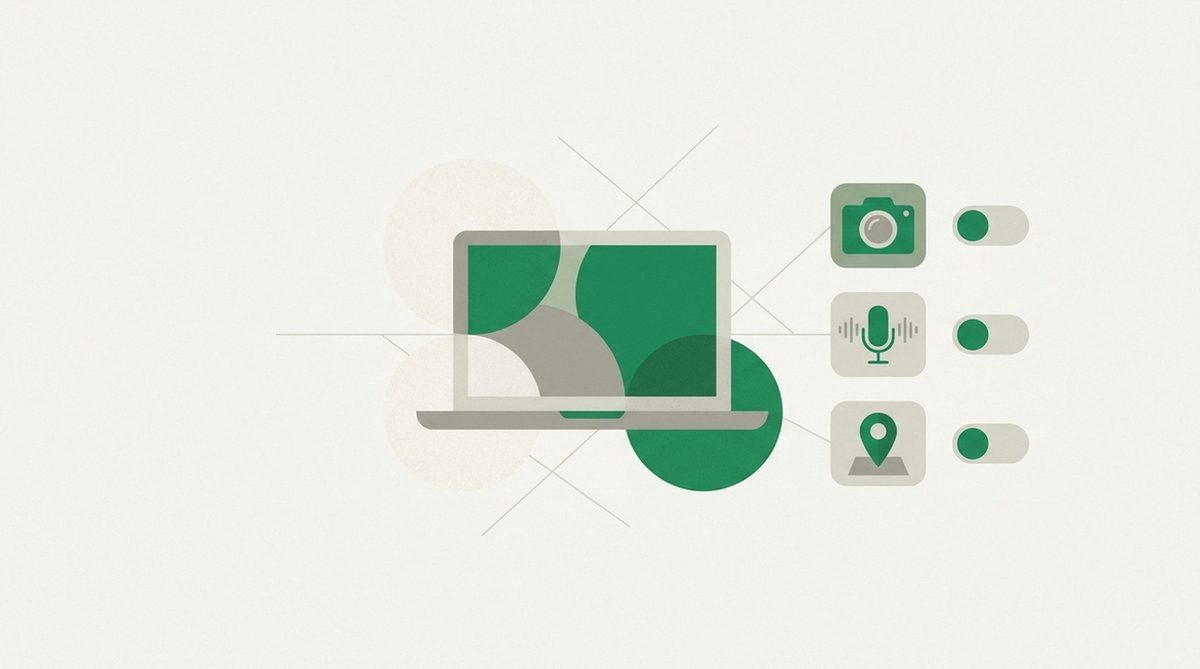
Open Settings > Privacy > Location. If no feature needs your location, select Change and turn off device location. Otherwise, leave the device control on and disable access for individual apps that have no clear reason to know where you are. Clear the location history shown on the same page.
Then review Settings > Privacy > Camera and Settings > Privacy > Microphone. Keep device access available if you use video calls or recording, but turn off each Microsoft Store app that does not need the sensor.
Windows cannot provide the same per-app control for traditional desktop programs. Camera and microphone pages have one broader desktop-app switch, and desktop apps may not always appear in the access list. Review permissions inside browsers, calling apps, and recording software as well.
6. Audit every other app permission
Stay under Settings > Privacy and work down the App permissions list. Review account info, contacts, calendar, call history, email, tasks, messaging, radios, app diagnostics, documents, pictures, videos, and file-system access. Deny access when the app’s job does not require the data.
Avoid turning everything off at once. Change one category, test the apps you rely on, and then continue. On a work or school PC, policy may lock some controls; do not bypass an administrator’s settings.
Open Privacy > Background apps next. Disable background activity for nonessential Microsoft Store apps, or turn off Let apps run in the background to stop most of them. Traditional desktop apps are not governed by this list, so use each program’s own startup and background settings.
7. Decide whether cloud speech is worth the data
Go to Settings > Privacy > Speech. Online speech recognition sends voice data to Microsoft’s cloud to create text transcriptions. Turn it off if you do not use online dictation or other cloud speech features; Windows can still use its device-based speech recognition.
Next open Privacy > Inking & typing personalization. Turn off Getting to know you if you do not want Windows maintaining a custom word list for typing and handwriting suggestions. Turning it off clears that list.
8. Review Microsoft-account and browser privacy separately
Device switches are only one layer. Sign in to Microsoft’s privacy dashboard to review and delete activity associated with your account. Then check your browser’s site permissions, cookies, history, synchronization, search engine, extensions, and diagnostic-data settings.
Changing a Windows toggle does not withdraw permission already granted inside a website or desktop app. Uninstall software you do not trust instead of relying on an operating-system switch to contain it.
The Windows 11 equivalents
Windows 11 groups these controls under Settings > Privacy & security. Use Diagnostics & feedback, Activity history, Location, and the individual app-permission pages there. The Windows 10 General page appears as Recommendations & offers on newer Windows 11 releases, although some installations still label it General.
Background permissions moved to Settings > Apps > Installed apps. Open an app’s menu and choose Advanced options where available. Repeat the privacy review after upgrading.
For the network side, our Windows VPN setup guide covers both versions, and our best VPNs for Windows guide compares the current desktop apps.
What these settings cannot protect
Privacy controls do not patch Windows, remove malware, identify phishing, secure an exposed account, or replace backups and multifactor authentication. They also cannot fully govern classic desktop software, which often uses its own permissions and data-collection controls.
They do not make browsing anonymous. Websites can still recognize logins, cookies, payment information, browser characteristics, and activity you submit directly. Your ISP or local network also remains outside the scope of Windows app permissions, a gap explained further in our guide on what a DNS leak is and how to fix it.
Where a VPN genuinely fits

A VPN protects the network path between your PC and the VPN server and changes the public IP address seen by destinations. It does not block Windows diagnostics or repair an unsupported operating system, and it transfers network trust from the ISP to the VPN operator, a tradeoff explained in our guide on how to block ISP tracking.
NordVPN is a practical Windows option because its current Windows 10 and 11 app includes an Internet Kill Switch that can block unprotected access if traffic stops passing through a NordVPN server. The ownership caveat is worth knowing: Nord Security and Surfshark merged in 2022, while stating that the services retain separate infrastructure and product roadmaps. Read our full NordVPN review before deciding whether that trust model suits you.
FAQ
Is Windows 10 safe to use after support ended?
An ordinary Windows 10 installation no longer receives free security updates. Eligible personal Windows 10 22H2 devices can receive critical and important updates through October 12, 2027 after Consumer ESU enrollment. Treat ESU as time to migrate, not a return to full support.
Which Windows 10 privacy settings should I turn off?
For a privacy-first baseline, turn off the advertising ID, app-launch tracking, suggested content, Optional diagnostic data, tailored experiences, local activity history, and permissions an app does not need. Keep location, camera, microphone, speech, or background access where a feature you use depends on it.
Does deleting diagnostic data stop Windows telemetry?
No. The Delete button removes diagnostic data associated with the device, but it does not stop required diagnostic data from being sent later or clear account-associated data. Set diagnostics to Required, switch off optional uses, and review the Microsoft privacy dashboard separately.
Does a VPN stop Microsoft from collecting Windows data?
No. A VPN changes the network route; it does not prevent an app or Windows component from sending data through that route. Use Windows privacy controls for operating-system data, app and browser settings for their data, and a VPN only for the network layer.
Michael Miller