What Is a DNS Leak and How Do You Fix It?
A DNS leak sends name lookups outside the route you intended. Learn how to test correctly, identify the cause, fix browser and OS settings, and confirm the repair.
 By Michael Miller · Updated July 23, 2026

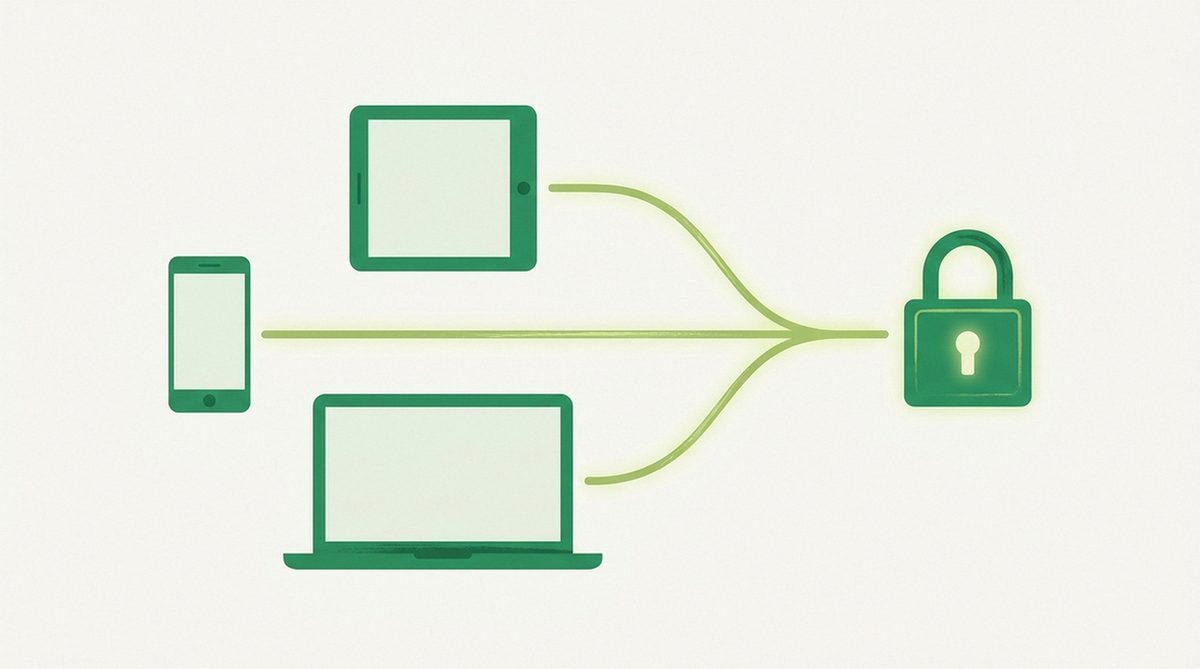
A DNS leak happens when your device sends domain-name lookups to a resolver outside the route you intended to use. If a VPN is connected, its app should normally keep those lookups inside the VPN tunnel. A request that instead reaches your internet provider, workplace, school, hotel, or another unexpected resolver is a leak.
The usual fix is to restore automatic system DNS, let the VPN app manage it, align browser-level secure DNS, reconnect, and retest. Judge the result by the resolver operator and your intended setup, not location alone.
What a DNS leak reveals
DNS translates a name such as example.com into an IP address that a device can contact. A recursive DNS resolver handles that lookup on your behalf. Traditional DNS can travel in plaintext, while DNS over HTTPS (DoH) and DNS over TLS (DoT) encrypt the exchange between your device and the chosen resolver.
If a request escapes a VPN tunnel, the unintended resolver can see the domain and lookup time. That is not a complete browsing history: apps make background requests, cached names may trigger no lookup, and DNS does not show the exact page or file opened.
A DNS leak is also not the same as an IP, IPv6, or WebRTC leak. Those can expose network addresses through different paths. Fixing DNS does not automatically fix them, so a complete VPN check should test each category separately.
How to test for a DNS leak correctly
Use a control test before deciding that an unfamiliar server is a leak.
- Disconnect the VPN. Close other VPNs, proxies, and privacy extensions for this baseline only.
- Open DNSLeakTest.com and note the result. Record the resolver owner and country shown without the VPN. This may be your ISP, router’s upstream provider, employer, or a public DNS service you configured.
- Connect the full-device VPN. Choose a server, wait for the app to report that the tunnel is active, and leave split tunneling off during diagnosis.
- Run the standard test, then the extended test. The standard test is a quick check; the extended test repeats more queries and is better at exposing intermittent or multiple resolver paths.
- Cross-check with BrowserLeaks. Its IPv4-only and IPv6-only DNS names can reveal differences between address families.
With the VPN connected, a resolver operated by the VPN or its infrastructure partner is normally expected. Your ordinary ISP, hotel, campus, or office resolver is a warning sign. A public resolver such as Google or Cloudflare is not automatically proof of a leak: a browser, operating system, security app, or router may be intentionally using encrypted DNS through that service.
If the unexpected resolver appears only in one browser, check that browser’s secure DNS. If it appears everywhere, focus on the VPN, operating system, or router.
How to fix a DNS leak

Work through these steps in order and retest after each material change.
1. Let the VPN app manage DNS
Restore the VPN app’s DNS setting to Automatic, Provider DNS, or its equivalent. Remove a custom address temporarily, then reconnect so the app can rebuild the route.
Use the provider’s full-device app while troubleshooting. A browser extension may protect only browser traffic and cannot reliably set DNS for every app on the device.
2. Match the browser’s secure DNS behavior
Chrome has Use secure DNS under Settings > Privacy and security > Security. Firefox places DNS over HTTPS under Settings > Privacy & Security. Firefox’s Default Protection can defer to VPN, parental-control, enterprise, or network signals; stricter modes can force a separate DoH resolver.
For diagnosis, use the browser’s default or system-provider behavior, restart it, and retest. If the unexpected resolver disappears, the browser chose a separate path. You can keep a deliberate DoH provider, but the test will show that resolver instead of the VPN’s DNS.
3. Remove stale manual DNS settings
A manual DNS server can outrank the VPN’s route. Reset both IPv4 and IPv6 DNS to automatic unless your provider documents another configuration, then reconnect.
If you use an antivirus suite, parental-control app, ad blocker, or corporate security client, check whether it installs a local DNS proxy. Do not remove workplace or school controls without authorization; ask the administrator which resolver should appear.
4. Check split tunneling and competing network tools
Turn off split tunneling during the test. An excluded browser or DNS utility may be doing exactly what the rule permits: bypassing the VPN. Also stop any second VPN, proxy, custom firewall, or standalone DNS client so only one tool controls the route.
Enable the kill switch after DNS works. It can block traffic when the tunnel drops, but it cannot correct a bad route while the tunnel remains connected.
5. Update or rebuild the VPN connection
Update the VPN app, try another in-app protocol, and reconnect. If the leak persists, reinstall the app so it can recreate its virtual adapter and DNS rules. Test another server before sending support both baseline and connected results.
Platform-specific DNS fixes
Windows 11
Go to Settings > Network & internet, select the active Wi-Fi or Ethernet connection, open its hardware properties, and edit DNS server assignment. Choose Automatic (DHCP) unless your VPN documents a manual value.
Open Windows Terminal or Command Prompt as administrator and run ipconfig /flushdns. Reconnect and repeat the extended test. If Wi-Fi and Ethernet are both enabled, check both adapters.
macOS
Open System Settings > Network, select the active service, choose Details, then DNS. Remove DNS servers you added manually, apply the change, and reconnect the VPN. Entries supplied automatically by the network may reappear, which is normal when the VPN is disconnected.
If the wrong resolver remains, restart the active network service and VPN app before changing lower-level files.
iPhone and iPad
Open Settings > Wi-Fi, tap the connected network’s information button, select Configure DNS, and choose Automatic. This is per-network, so check other saved Wi-Fi networks if the problem follows one location.
For device-wide protection, use the provider’s iOS or iPadOS app rather than trying to maintain manual DNS entries on every network.
Android
Open Settings > Network & internet > Private DNS and choose Automatic while testing the VPN’s own resolver. Menu names vary by phone and Android version, so search Settings for “Private DNS” if the path differs.
An intentional DoT provider may appear instead of the VPN’s resolver. Android Private DNS protects DNS questions and answers only; it does not replace a VPN or HTTPS.
Linux
Desktop menus vary, but the safe starting point is the active connection’s IPv4 and IPv6 settings: restore DNS to Automatic, save, and reconnect. On systems using systemd-resolved, resolvectl status shows the DNS servers assigned per link, and sudo resolvectl flush-caches clears its local cache.
Follow the VPN’s Linux instructions rather than editing /etc/resolv.conf blindly; it may be generated automatically.
Router or whole network
If every device shows the same resolver, inspect the router’s internet or DHCP DNS settings. Restore automatic DNS or the VPN-router setup’s documented resolver, reboot, and retest one device first.
What fixing a DNS leak does not protect
A clean DNS result means the test found only the resolver path you intended. It does not make you anonymous, prove that a VPN keeps no logs, or stop websites from identifying signed-in accounts, cookies, payment details, or browser fingerprints. Our guide to what a VPN hides explains that boundary in more detail.
Encrypted DNS without a VPN also leaves destination IP addresses, timing, and data volume visible to the access network. See our practical guide to reducing ISP tracking for the difference between HTTPS, encrypted DNS, and a full-device tunnel.
A DNS test does not assess malware, phishing, unsafe downloads, or account security. It also cannot certify every app on a device: test the browsers and applications that matter to you, especially after major operating-system, browser, router, or VPN updates.
Where a VPN genuinely fits
A full-device VPN is useful when you want DNS and other device traffic to share one protected route. NordVPN is our pick here because its current native-app documentation says the apps automatically use NordVPN DNS while connected, and its kill switch can block unprotected traffic when the tunnel fails. The honest limitation is trust: you are moving network visibility from the local network and ISP to the VPN operator. See our guide to what your ISP, sites, and governments can see for the fuller picture of that tradeoff.
Turn on the kill switch, keep split tunneling off for privacy-sensitive apps, and verify the exact device rather than trusting a feature label. Read our full NordVPN review and compare that trust tradeoff with the wider field in our guide to the best VPNs for anonymity and privacy.
FAQ
Can a DNS leak expose my browsing history?
A DNS leak can expose domains, lookup times, and the resolver path. Those are browsing clues, not a page-by-page history: DNS omits the full URL, and apps make background requests.
Why does a DNS leak test show a different country?
Location databases are imperfect, and large DNS services use distributed infrastructure. Check the operator first; a different country alone does not prove a leak.
Is Cloudflare or Google DNS showing in a test a leak?
Not necessarily. Your browser, system, router, or security app may use it intentionally. Reset browser and system DNS to default, reconnect the VPN, and compare the result.
Does a VPN always prevent DNS leaks?
No. Manual DNS, browser DoH, split tunneling, competing tools, stale adapters, or app defects can change the route. Test after setup and major updates.
Michael Miller