VPN for Beginners: Everything You Need to Start (2026)
A plain-English explanation of what a VPN does, followed by a practical first setup that does not promise anonymity.
 By Michael Miller · Updated July 23, 2026

Your first VPN setup should be simple: choose a provider you trust, install its full app from an official source, leave the connection protocol on its recommended setting, and connect to a nearby server. Then turn on auto-connect and decide whether you want a kill switch after learning how it behaves on your device.
That setup gives you a more private route on networks you do not control. It does not make you anonymous, secure a compromised device, or erase the identity attached to accounts you use.
What is a VPN and how does it work?
A VPN, or virtual private network, is an app or service that sends your internet traffic through an encrypted tunnel to a VPN server. The app authenticates your account and creates the protected connection; the tunnel protects traffic between your device and that server; and the server forwards it to websites and apps.
Websites normally see the VPN server’s IP address instead of the address assigned by your home, mobile, hotel, or coffee-shop network. The destination can still keep its own account data, cookies, logs, and tracking scripts, and HTTPS still matters.
The important word is route. A VPN changes how your traffic reaches the internet and which network IP address websites see. It does not change the information you deliberately give a website. Our guide to whether a VPN can be tracked explains what your internet provider, websites, and other observers can still see.
| A VPN can help with | A VPN cannot do for you |
|---|---|
| Encrypt traffic between your device and the VPN server | Make you anonymous when accounts, cookies, or fingerprints identify you |
| Hide your current network IP address from destination sites | Replace antivirus, software updates, strong passwords, or multifactor authentication |
| Reduce what a local network or internet provider can inspect about your traffic | Make phishing pages safe or undo information you submit to a scammer |
| Give you a consistent privacy layer on unfamiliar networks | Override local law, workplace rules, school policies, or a service’s terms |
Decide what job the VPN needs to do
Do not start with a feature list. Write down the situation you want to improve.
A VPN is a sensible fit on hotel, airport, cafe, campus, or coworking Wi-Fi; when you want less browsing detail exposed to your internet provider; or while traveling. It cannot guarantee that a website or streaming app will accept the connection. Our explanation of VPN use with Netflix covers the separate legal and service-terms boundary.
You may not need it connected every minute. Banking sites, work tools, streaming services, printers, and smart-home devices can behave differently when your traffic exits through a VPN server. The right goal is dependable protection when it helps, not a green connection icon at any cost.
Choose your first VPN without getting lost in specs
Use this section to decide what your first service must do. If you already understand the basics and want a side-by-side commercial shortlist, move to our best VPN services comparison instead.
1. Start with trust
The VPN provider operates the server at the far end of your encrypted tunnel, so you are shifting some trust away from your local network and internet provider. Read the privacy policy, identify the company behind the service, and look for a clear explanation of what it collects. The Electronic Frontier Foundation’s independent guide to choosing a VPN also cautions that appearing in an official app store does not prove a VPN is trustworthy.
2. Check every device before paying
List the phone, laptop, tablet, TV device, and other hardware you plan to cover. Confirm that the provider has a maintained app for each operating system and that its simultaneous-connection limit is high enough.
3. Require the controls that prevent mistakes
Look for a recommended-server button, auto-connect, and a kill switch on your main device. Auto-connect reduces the chance that you forget the VPN on an unfamiliar network. A kill switch can block traffic when the tunnel is unavailable, but implementations differ by app and operating system, so read the provider’s device-specific instructions before enabling it.
Leave split tunneling and specialty servers alone at first. They are useful for specific problems, but every exception makes your setup harder to reason about.
4. Calculate the real cost
Do not compare VPNs by the large discount or monthly equivalent alone. Check the amount charged today, subscription length, renewal price, taxes, cancellation steps, and refund terms.
A limited free plan is not automatically unsafe, and a paid plan is not automatically trustworthy. The privacy policy, business model, permissions, and product limits matter more than the word “free.”
Set up your first VPN in 7 steps

- Subscribe through the provider’s official site. Confirm the plan length and renewal terms before entering payment details. Use a unique password and enable multifactor authentication if the account offers it.
- Install the full VPN app. Use the provider’s official download page or the publisher’s verified app-store listing. A full app is the clearest choice when you want protection for device traffic rather than only activity inside one browser.
- Sign in and approve the VPN configuration. Android, iOS, macOS, and Windows may show a system prompt when an app first creates a VPN connection. Check that the prompt names the app you intentionally installed before approving it.
- Keep the protocol on Automatic or Recommended. The app can choose a suitable connection method. Change protocols only when the provider’s support guide tells you to troubleshoot a specific network problem.
- Connect to the recommended nearby server. A distant location usually adds unnecessary distance. Use another country only when you have a clear, lawful reason and accept that sites may react differently to that IP address.
- Verify the connection. Check your visible IP address with a reputable IP-check service. Disconnect and repeat the check; the results should differ. Reconnect before continuing.
- Configure automation deliberately. Turn on auto-connect for unfamiliar Wi-Fi or all networks if that suits your routine. Enable the kill switch, then test it while no sensitive task is running: interrupt the VPN connection and confirm whether internet access stops in the way the provider documents. Our Private Internet Access setup guide shows how one provider implements network-based automation controls.
Avoid these common first-time mistakes
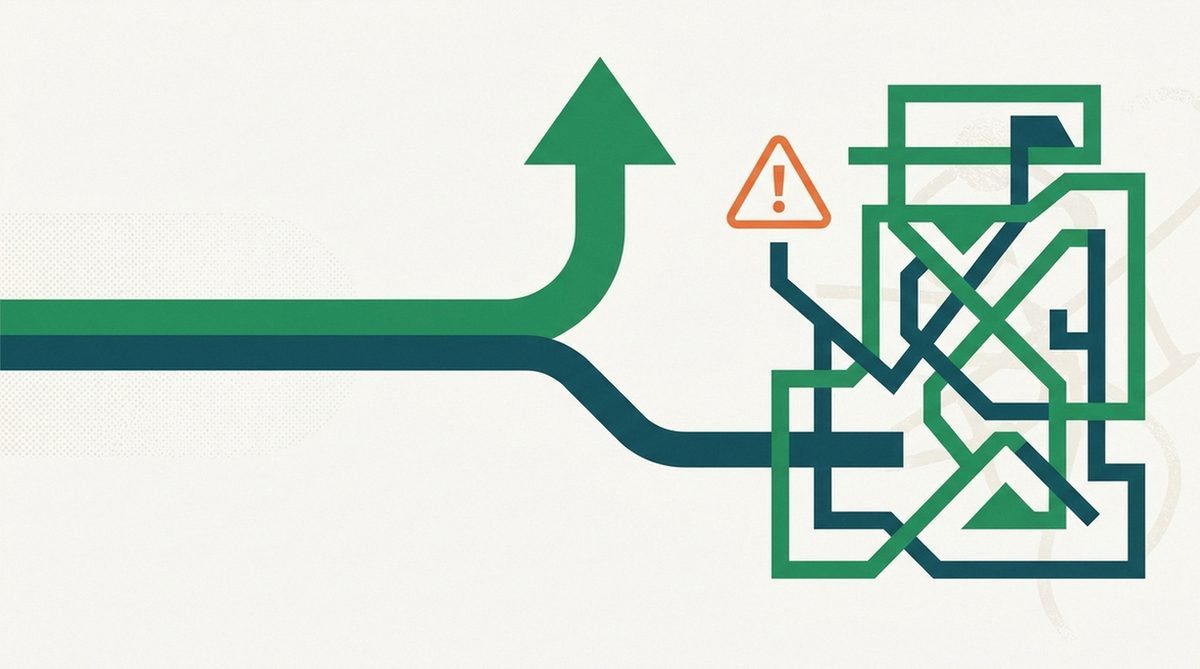
Connecting before a Wi-Fi sign-in page loads. Hotel and airport networks often use a captive portal. A kill switch or auto-connect rule can prevent that page from appearing. Join the network, complete its sign-in, then reconnect the VPN; never enter more personal information than the portal genuinely requires.
Picking the farthest server because it feels more private. Distance does not strengthen encryption. Start nearby for a simpler connection.
Assuming the VPN hides signed-in activity. Google, Apple, Microsoft, a bank, or a social network still recognizes the account you use. Cookies and browser fingerprinting also remain outside the VPN’s core protection.
Changing several advanced settings at once. If the connection fails after you alter the protocol, DNS, split tunneling, and kill switch together, you will not know which change caused it. Adjust one setting, test, and document the result.
Forgetting local devices. A printer, casting target, or network storage device may stop appearing while the VPN is active. Check the app’s local-network setting rather than disabling the VPN permanently.
Ignoring renewal terms. Promotional plans can renew at a different price. Set a calendar reminder at least 2 weeks before renewal and reassess the service while you still have time to cancel.
What a VPN still does not protect
Keep HTTPS enabled and heed browser warnings. A VPN does not prove that the destination website is genuine or secure its systems.
Keep your operating system and apps updated, use unique passwords, turn on multifactor authentication, and retain malware protection appropriate to your device. A VPN cannot stop you from opening a malicious attachment, approving a fraudulent login, or sending information to the wrong person. Our guide to whether a VPN protects against viruses explains that boundary in more detail.
Remember the trust boundary too. Your local network sees less browsing detail, but the VPN provider becomes an important intermediary. That is why transparent policies and a provider you can hold accountable matter more than a giant server count.
Are VPNs legal and safe to use?
VPNs are normal privacy and security tools in many places, including for remote work and personal privacy. Laws vary, however, and some countries restrict or regulate VPN use. Check current local rules before using one while traveling or living abroad. A VPN does not make an unlawful act legal or override a service’s terms.
Safety also depends on the provider and your own behavior. A reputable service can improve privacy on a shared network, while an opaque free app can introduce new data collection, advertising, or permission risks. Use a VPN as one layer alongside device updates, strong account security, cautious browsing, and a secure browser that fits your needs.
A sensible first choice
NordVPN is our practical beginner recommendation, not a universal or lab-scored winner. Its current apps cover the major desktop and mobile platforms, and its official device policy allows up to 10 simultaneous connections. That is enough for a typical mix of phones and computers, but count your own devices before paying.
The controls are unusually well documented for a first setup. NordVPN provides separate instructions for auto-connect and its kill switch. Read the page for your operating system because the available modes and behavior are not identical everywhere.
Price is the main reason not to subscribe blindly. NordVPN’s live pricing page shows the amount due for the introductory term and the renewal in the visitor’s region; both can change with country, tax, plan, and campaign. Compare those two totals at checkout rather than relying on an old monthly-equivalent figure.
Ownership matters as well. Nord Security’s official impact-report announcement says it finalized a merger agreement with Surfshark while the two services continued to operate autonomously. That shared group relationship is relevant if provider independence is part of your decision. Read our full NordVPN review before subscribing.
For a first setup, install the official app, use the recommended connection, enable auto-connect, and test the kill switch. That is a better foundation than enabling every advanced feature on day one.
FAQ
What is a VPN in one sentence?
A VPN is a service that encrypts the connection from your device to a VPN server and makes websites see that server’s IP address instead of the IP address assigned to your current network.
Do I need a VPN at home?
Not necessarily at all times. A VPN at home can reduce the browsing detail visible to your internet provider and keep your privacy routine consistent, but it will not make signed-in activity anonymous. It is more clearly useful when you move between networks you do not manage.
Should I leave my VPN on all the time?
Leave it on when you want the privacy layer and your essential apps work correctly. If a bank, work tool, streaming service, or local device rejects the connection, pause the VPN only for that task and reconnect afterward. Auto-connect can restore protection when you join another network.
Is a free VPN good enough for a beginner?
A transparent, reputable free tier can be useful for learning the app or handling light browsing, but read its data allowance, location limits, device support, privacy policy, and funding model. Avoid unknown apps that request unrelated permissions or do not clearly identify the company operating the service.
Why does a website stop working when I connect?
The site may block known VPN addresses, object to a sudden location change, or require access to a local device or network. Try a nearby server first. If that fails, follow the provider’s support steps and change one setting at a time rather than disabling every safeguard.
Michael Miller